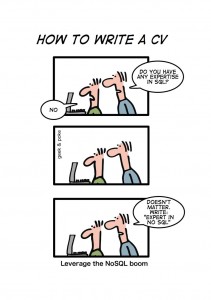
 The day is almost over, so I’ll fill you in on some of what occurred today, as it relates directly to this post by Mike at GLComputing. This was originally written as a comment to his post and kinda grew, so I’m posting it here in full.
SQL 2008 Express R2 has finally let me install a default SQLEXPRESS instance but I still can’t get a custom instance of ACT7 working. Who should be paying for the time it’s taking me to work out this issue?
I don’t yet have a complete answer to that question.
Imagine for a moment that I buy a brand new car, from a dealership. The car has trouble starting. So I go back to the dealership and ask them to fix it. They do so. I as a client go home happy.
But what’s really occurred? Well, the dealership gets a mechanic to look at it; he determines that a component if faulty, he replaces it with one off the spare part shelf in the dealership.
The dealership doesn’t want to wear the cost of the mechanics time or the cost of the part, so they put in a warranty claim to the manufacturer for the time taken by the mechanic and the cost of the part.
The manufacturer pays up, occasionally they audit the dealership to make sure fraud isn’t occurring. The manufacturer actually obtained the faulty component from a supplier. They then make a claim to the supplier for the costs.
The supplier pays up.
I know this because many years ago (early ‘90’s) I was a Warranty Manager for a car dealership.
Should the same process apply in the software industry?
Is it the fault of the reseller/dealership that software/component failed?
Is it the fault of the software house/manufacturer that the software/component failed?
Is it the fault of the supplier that the software/component failed?
Of course the initial supplier will argue that they make their product to stringent standards, and they can’t account for all the possible variables of other hardware and environmental conditions.
And of course the software house/manufacturer will say they took all appropriate steps.
And also, of course, the reseller/dealership will say they aren’t to blame either.
And the customer, well, the customer is never wrong, right?
Getting a little more specific, in my case today, the client has all good name brand equipment, setup by a reputable IT firm with a solid reputation. I couldn’t fault either their spec’s or configuration. I know the amount of effort I’ve put into this today. I know how much effort I’ve put into making SQL installs go smoothly, to the point where they mostly do go smooth for me, but sometimes, like today, they go very very wrong.
And so yes, I lay the fault with the remaining two players. Me, the guy on the pointy end of the issue, who gets to look like an idiot in front of a customer because he can’t make shrink wrapped software work on name brand computers. [Do you think I’m a little cranky? hint, I am.]
You see, the vendor here (Sage) have a product they sell (Sage ACT!) that uses a database in the back end (Microsoft SQL Server 2008 Express R2). The vendor (Sage) has chosen to use that product, use that version of the product. That choice means an implicit responsibility to issues using their product with the 3rd party product. Let me say it clearly, “Sage, you chose to use Microsoft SQL 2008 Express R2, which makes you half responsible.”
The 3rd party, the supplier of that component, Microsoft, have chosen to update their product, and sometimes that transition hasn’t gone smoothly for them, but nonetheless they have updated on a semi-regular basis (although not yearly, and the topic of frequency will be the subject of another discussion). They provide help via their KB articles and revert to the line “too many other environmental factors, not our problem”.
Reminds me of a joke I heard years ago:
A helicopter was flying around above Seattle when an electrical malfunction disabled all of the aircraft’s electronic navigation and communications equipment. Due to the clouds and haze, the pilot could not determine the helicopter’s position and course to fly to the airport. The pilot saw a tall building, flew toward it, circled, drew a handwritten sign, and held it in the helicopter’s window. The pilot’s sign said “WHERE AM I?” in large letters. People in the tall building quickly responded to the aircraft, drew a large sign and held it in a building window. Their sign read: “YOU ARE IN A HELICOPTER.” The pilot smiled, waved, looked at her map, determined the course to steer to SEATAC airport, and landed safely. After they were on the ground, the co-pilot asked the pilot how the “YOU ARE IN A HELICOPTER” sign helped determine their position. The pilot responded “I knew that had to be the Microsoft building because, like their technical support, online help and product documentation, the response they gave me was technically correct, but completely useless.” - Thanks to Alun for the source link.
In my view, if a car had, say a throttle problem, the manufacture would be sorting out the problem quick smart. Sage, you need to compensate the people in the front line, in the trenches. Go hit Microsoft up if you’re not happy about it. That’s what the car manufacturers do. It works for them so don’t tell me it can’t work.
But, Sage, I’m not hearing much from you. And that’s concerning to me because in today’s world, the world of 2011, the internet, social media and a with your own social media presence, to not hear much at all is to hear all the other dissenting voices, to hear the competition.
Now honestly, the competition to Sage ACT! is woeful. Seriously, it is. ACT! is a great product, it’s flexible, customisable, and at least 11 other herbs and spices, all of which are pure goodness (honestly, it’s a lot more than 11). So here’s a hint to the competition, if you want a good CRM product, imitate ACT!.
Want to know one of its weaknesses? It’s reliance on product that doesn’t install properly.
Achilles only had one heel that gave him trouble. Most, but not all, of the competition have figured this out, and allow either multiple backend databases to be used (MSSQL/MySQL/Oracle/PostgreSQL and others).
Now if you agree with me, let me know, if you don’t let me know as well, because as those that know me can attest, if you can prove your point, I’ll change. Of course, if you don’t give two hoots, then I guess I won’t be hearing from you. Either way, I’m gonna go hold my teddy bear and sing myself to sleep, hoping that the SQL install nightmare doesn’t plague me tonight. I’m gonna need some sleep to go fight this dragon again.




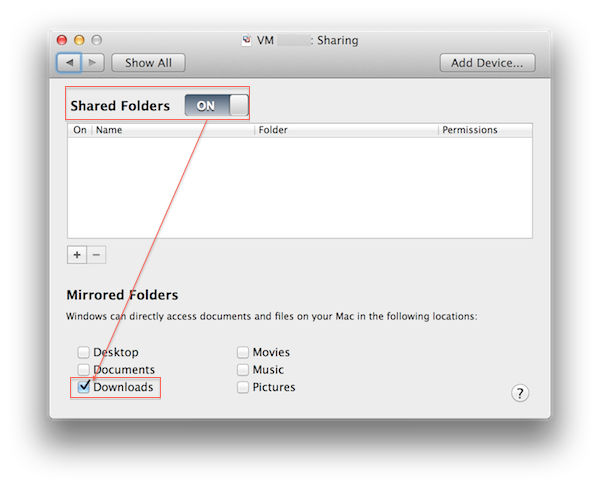
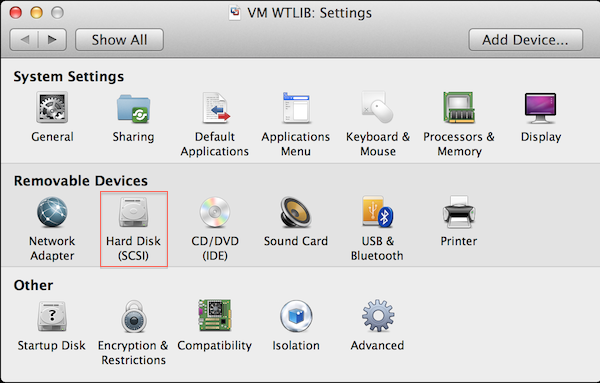 Note that you can’t make changes if the VM has snapshots of it.








 One of the ‘little’ things on iOS that I truly have come to love is this: when you type ‘two spaces’, it auto replaces that with a ‘period and a space’. For example ‘ ‘ becomes ‘. ‘
 It is without a doubt important to have goals. Every day, without even thinking about it, we have goals. Get up at the right time. Get to work on time. Have lunch.


 ]
] [Known Issues Cartoon
 The first MX record (indicated by a lower number, in this example, 10 mail.domain.com.au) is known as the primary MX record. This is where email servers will try to send email first. If it fails, then it will try subsequent MX records (in this example, 20 mail.domain.com.au).
